
Slack Connections
Connect Slack to receive Accoil automation alerts in your channels and use slash commands to look up users, accounts, and engagement data.
🧩 Overview
Slack has become the go-to hub for team communication—and with Accoil’s Slack integration, your product engagement insights can live there too.
By connecting Accoil to Slack, you’ll:
- Get real-time or daily automation alerts about user and account behavior
- Use simple slash commands to look up users, accounts, and engagement data
- Stay on top of what matters—without switching tools
Whether you’re in Sales, Support, Success, or Product, this integration brings Accoil insights straight to where your team works.
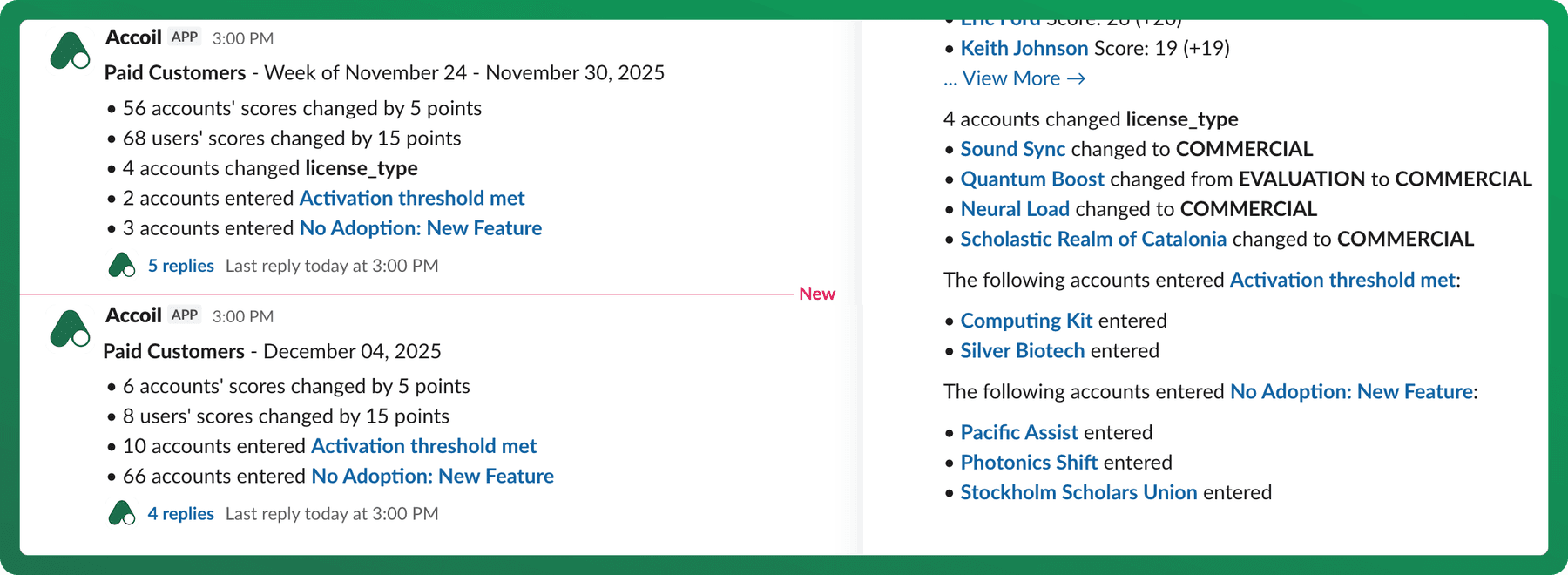
What you can do in Slack
Alerts & Notifications
One of the most powerful features of the Slack integration is receiving automation alerts directly in your Slack channels. These alerts are based on the automation rules you've set up in Accoil.
You’ll receive updates when:
- A user or account enters a key segment
- A new user signs up
- An activation milestone is reached
- An engagement score changes significantly
- Any custom rule is triggered
Types of Alerts:
- Real-time alerts: Sent as soon as the event happens
- Daily summaries: A digest of rule-based events, sent once per day
These alerts help your team stay informed and act quickly—without needing to log in to Accoil.
Slash Commands
Accoil also supports slash commands so you can look up live engagement data anytime, right from Slack.
All responses are private to you—they won’t be posted to the channel.
| Slash Command | What it does |
|---|---|
/accoil | View the list of commands available |
/accoil top users | See your most engaged users |
/accoil top accounts | View your top-performing accounts |
/accoil user [name/email/id] | Search for an individual user |
/accoil account [name or ID] | Search for a specific account |
Switching Workspaces
All engagement data in Slack is tied to a workspace—such as All Users, Trial Accounts, or Enterprise Customers.
If you're not seeing data or want to view results from a different workspace:
- Use the Change Workspace button at the bottom of any result
- Select from any workspace (across products) that you have access to in Accoil
This is especially helpful if you're working across different customer types or product environments.
Admin Setup & Configuration
Connecting Accoil to Slack
To connect Accoil to your Slack workspace:
- In Accoil, go to Settings > Connections
- Find Slack and click Connect
- Follow the Slack authorization flow to install the Accoil app
- Done! Accoil can now send alerts and you access slash commands via
/accoil
Setting Up Automation Alerts
To send engagement updates to Slack:
- Go to Automations in Accoil
- Create or edit a rule
- Add an Action → choose Send to Slack
- Choose the Slack channel and whether the alert should be real-time or daily
- Save and activate the rule
You can create alerts for things like:
- Users entering/leaving a segment
- Activation score changes
- Key product events
- Custom rules based on your data
You can send different alerts to different channels, keeping each team informed with what matters most to them.
Who Can Use the Slack Integration?
Once the Slack integration is connected:
-
Any Slack user can see alerts, as long as they have access to the Slack channel where the alert is posted—even if they don’t have access to Accoil.
-
Only users with access to Accoil can:
- Use slash commands to retrieve user or account data
- Switch workspaces from within Slack
No individual setup is required—once connected, everything works automatically based on Slack and Accoil access.
Use Cases by Team
| Team | How Slack + Accoil helps |
|---|---|
| Customer Success | Get notified when accounts go inactive or show churn signals |
| Sales | See when leads spike in activity or become qualified |
| Support | Quickly look up last active status and account health |
| Product | Monitor adoption and activation events across key segments |
| Marketing | Track engagement of campaign-driven signups |
Troubleshooting
- Not seeing any data in results? Try switching your workspace
- Alerts not appearing in Slack? Double-check the automation rule and channel settings. Make sure the rule is enabled
- Slash commands not working? Make sure the Accoil app is installed in your Slack workspace
Summary
The Slack integration makes Accoil's insights actionable where your team already communicates. Use it to stay ahead of user behavior, streamline collaboration, and make decisions faster—with no extra effort.
Questions? Feedback? Let us know—we’re always improving how Accoil fits into your day.
Segment Connections
Send Accoil engagement traits to Segment with identify and group calls, trigger events from automation rules, and connect using a write key.
Zendesk Connections
Add the Accoil widget to Zendesk Support tickets and Zendesk Sell leads so agents see engagement, activation, and adoption while they work.