
Configuring a Workspace
Create a workspace, choose its 1, 7, or 30-day time window, add the features that define engagement, and tune the weights behind the score.
Summary
Learn how to set up and configure a workspace in Accoil, including how to assign event weights, define time windows, and apply filters to tailor engagement scoring.
How this helps
Workspaces give you a focused way to measure engagement — so you can track the signals that matter and ignore the noise. Whether you’re scoring trial users or monitoring power-user behavior, it all starts here.
Create a Workspace
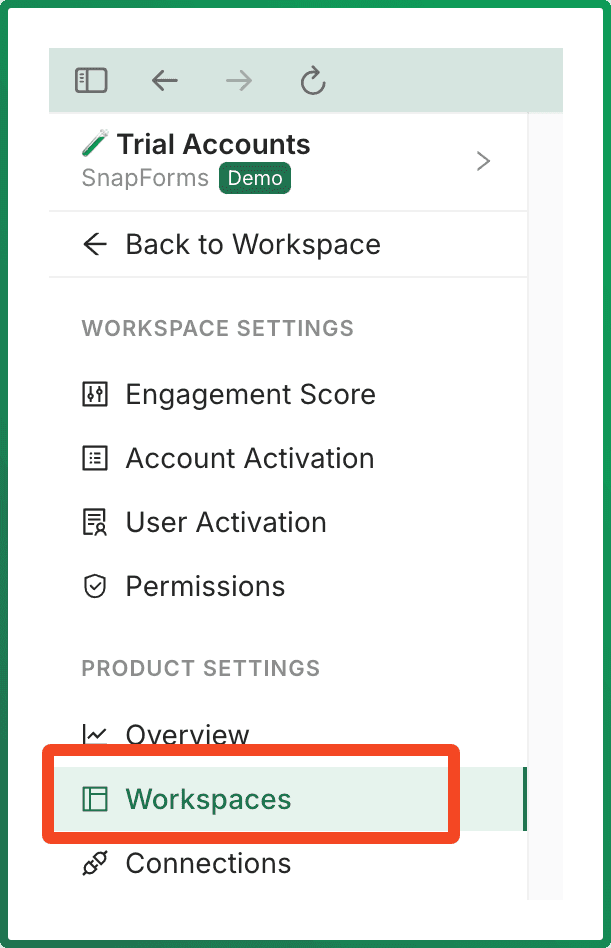
- Head to "Workspace settings in "Settings" on the left navigation button.
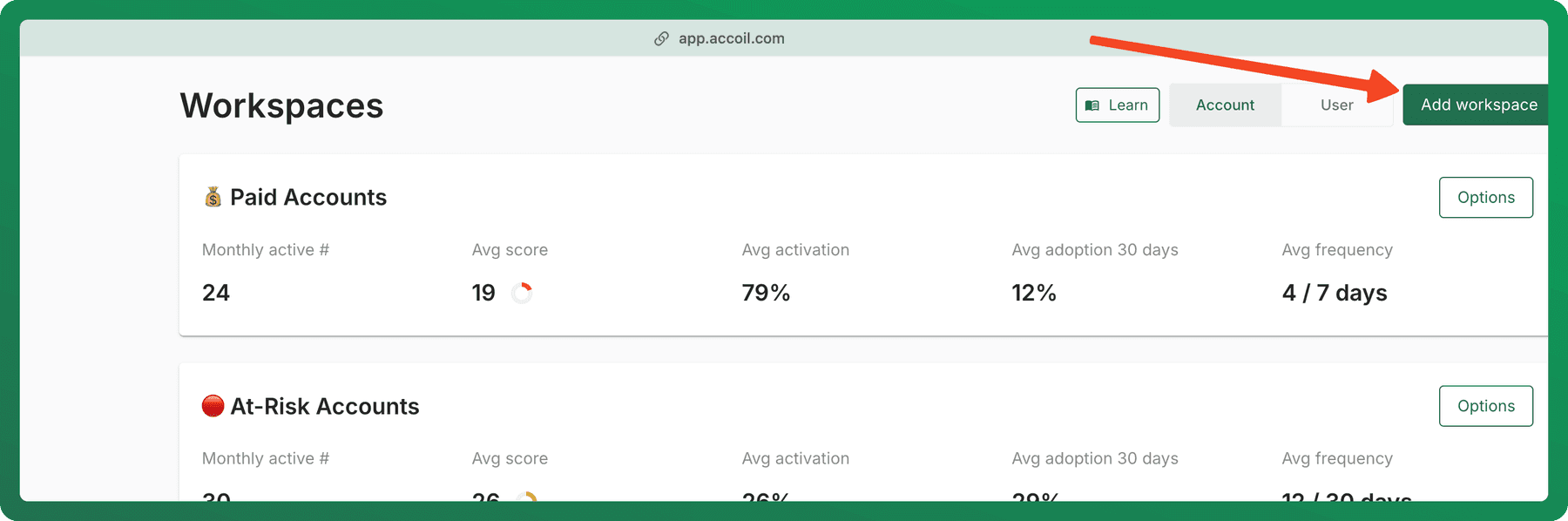
 2. Select "Add workspace" to create a new workspace
3. Give your workspace a name, then choose a time window

Give your workspace a name, then choose a time window:
- 1-day: For tracking daily active usage
- 7-day: Great for week-over-week trends
- 30-day: Ideal for monthly engagement cycles
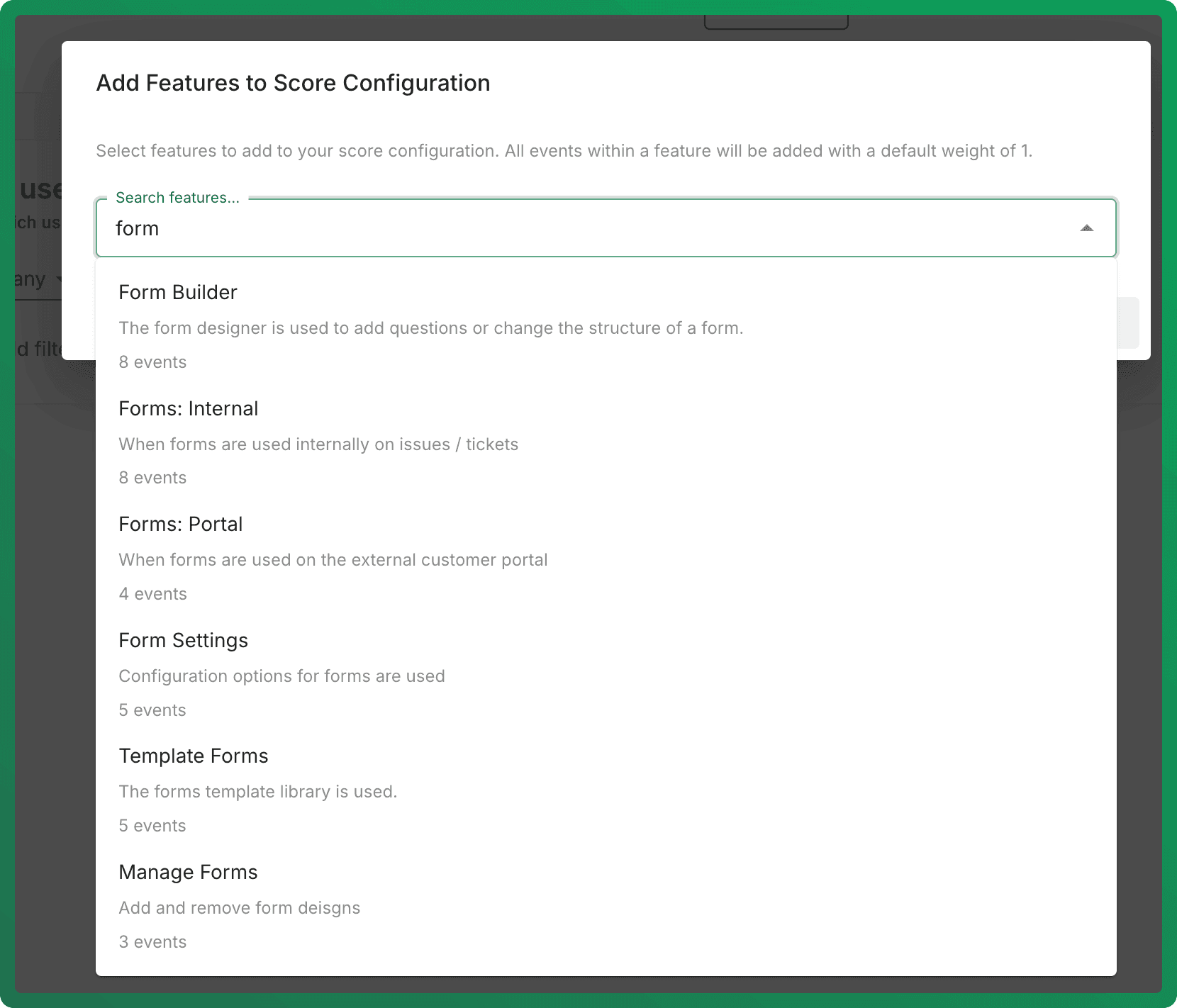
Choose the time window that aligns with how your users typically engage. No wrong answers here — just pick what makes the most sense for your product. 4. Add your Features to define engagement Select your relevant features to add to your score configuration and you’ll find them in a simple drop-down menu. All events within a feature will be added with a default weight of 1. Features are usually configured on set up and live in your Settings. Learn more about setting up Features
5. Adjust Feature weights Once added, you can fine-tune your scoring model:
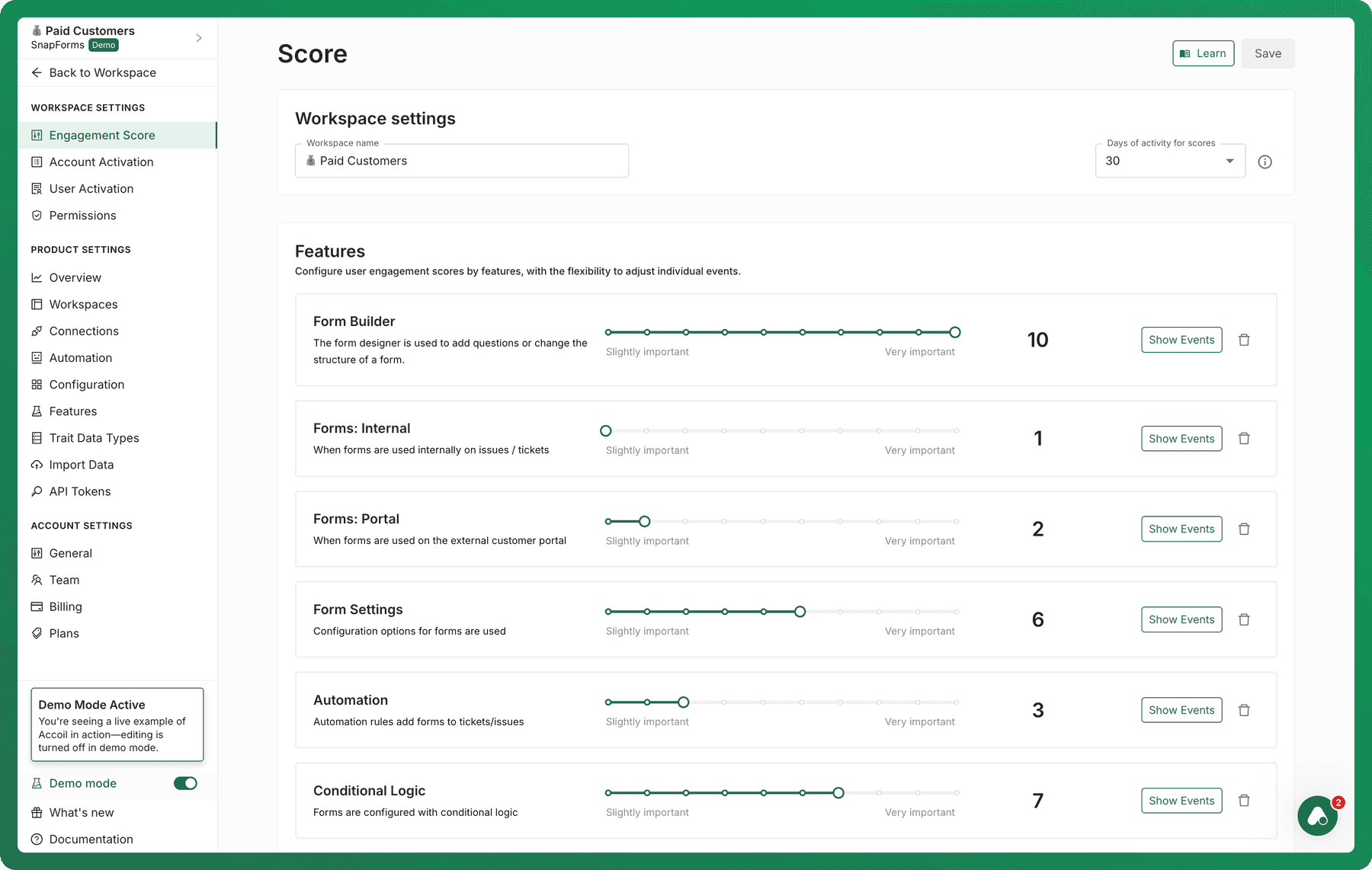
Set Feature Importance (1–10): Each feature can be rated on how much it should contribute to your engagement score.
Control Events Individually:
Want to get more specific? You can adjust the weight of each event inside a feature
To remove a feature from the score, just click the trash icon next to it.
How scored events affect active status
The events added directly, and the events inside selected features, become the workspace's scored events. They affect both the engagement score and active status:
- A user is active in this workspace when they trigger at least one scored event during the workspace period.
- An account is active when at least one user on the account triggers a scored event during the workspace period.
Events that are received by Accoil but are not included in this workspace's score do not make a user or account active here. Choose the scored events deliberately so active-user and active-account metrics reflect the behaviour this workspace is intended to analyse.
Score Filtering
You can filter your workspace to only apply to a subset of your user base. This is very helpful if you want to create a different scoring model for different types of users (trial vs paid users , admin users vs team members, buyers vs sellers, etc).
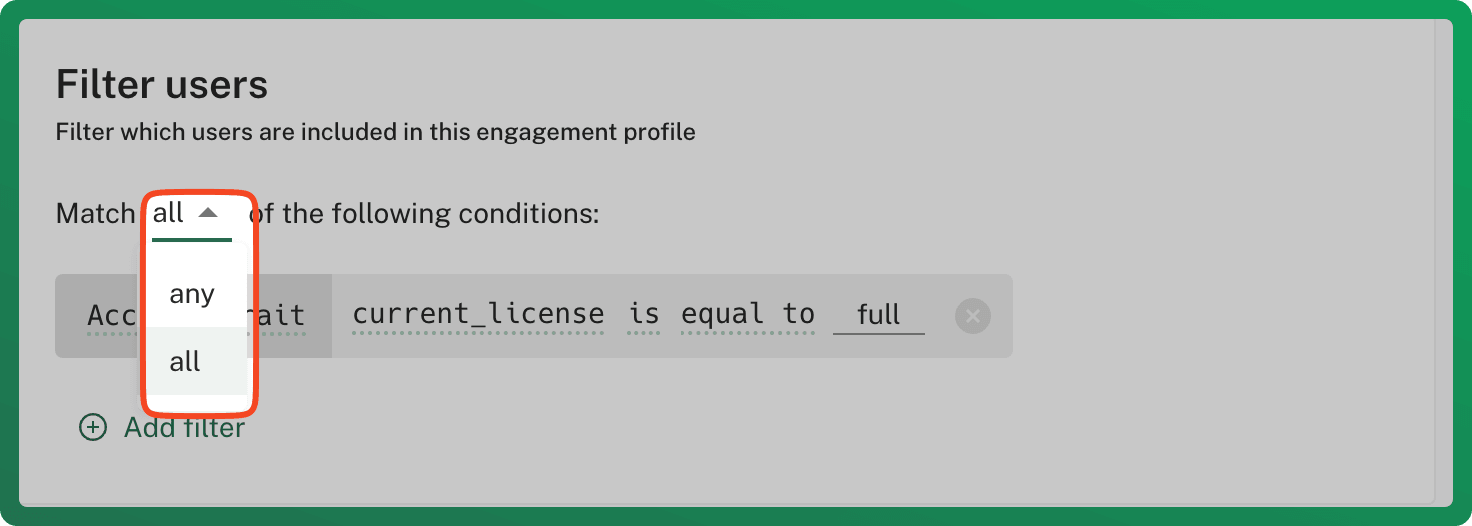
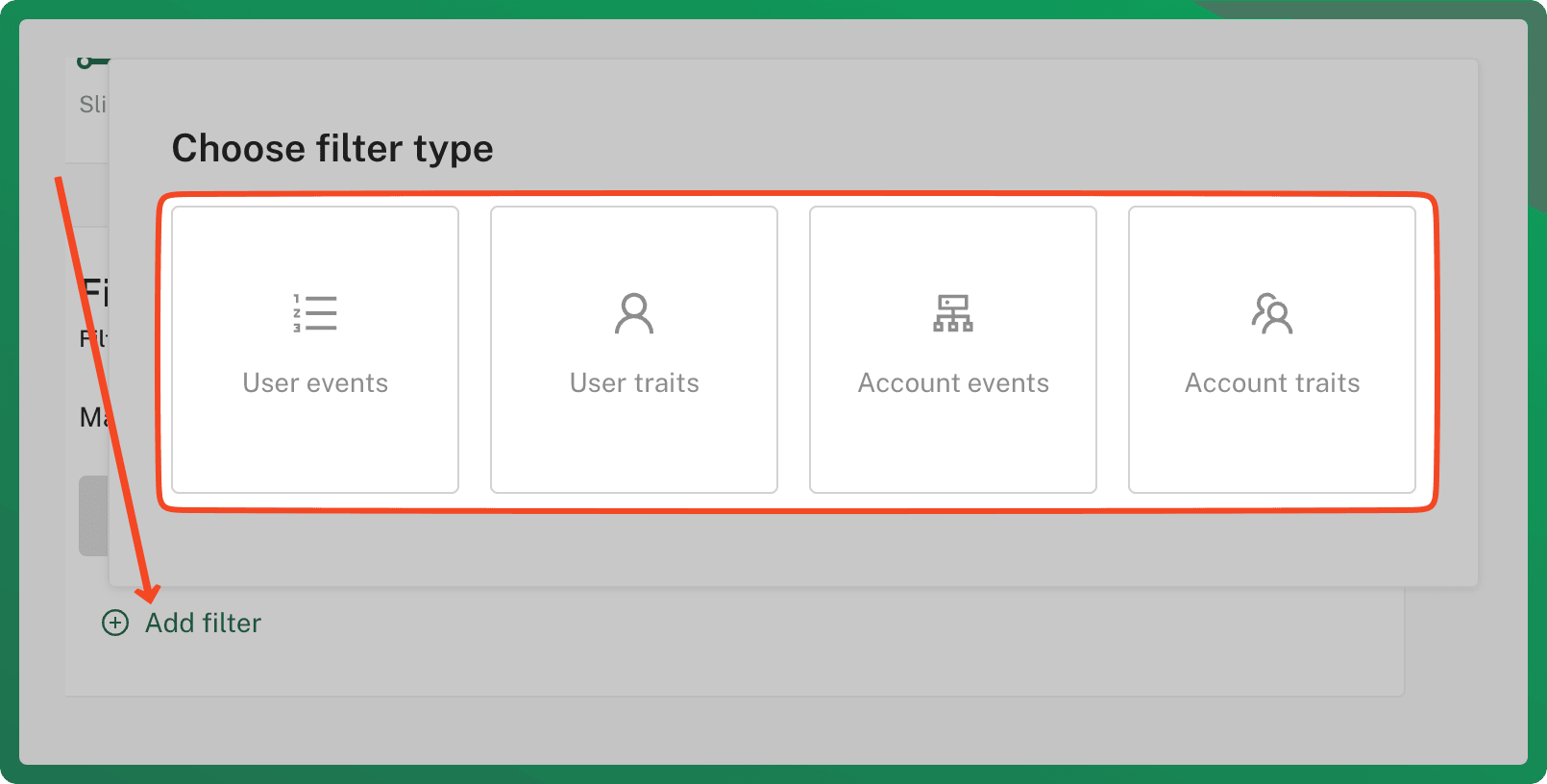
Note: First time setting up a score? Start without filters to understand your data before refining further.
Multiple Workspaces
Accoil lets you build multiple workspaces to suit different goals or teams. For example, one workspace for onboarding, another for power users, and one for upsell triggers. Learn more more about working with multiple scoring models (and why you would use them).
Recommended Reading:
Understand workspaces
Learn how a workspace defines scoring, active users and accounts, activation, and the audience being analysed.
Unsure what to score and weight in your workspace?
Group your events into features, then score and weight those features so your workspace reflects what good engagement actually looks like.