
Customise account and user profile layouts
Choose the metric cards, summaries, tables, charts, and sections shown on account and user profiles.
Customise a profile layout when you want an account or user profile to focus on the information you use most often. Your custom layout is personal by default, so you can organise it around your own workflow without changing another person's view.
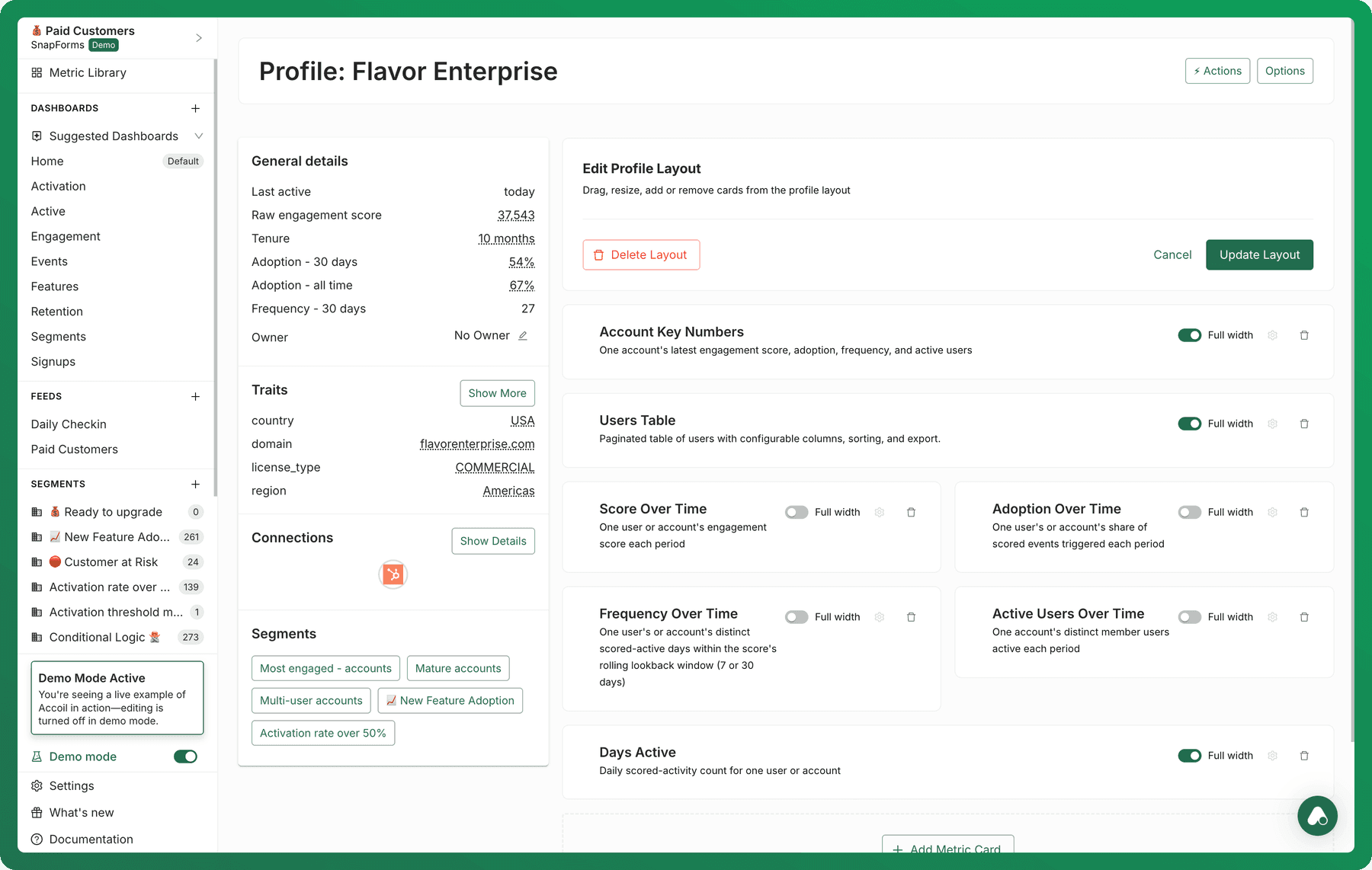
Open the layout editor
- Open an account or user profile.
- Open Options.
- Choose Edit layout.
Choose what the profile shows
A custom profile layout can include:
- metric cards that are relevant to the account or user
- an account summary or AI-generated summary
- a table of users on an account profile
- activation charts
- headings that divide the profile into useful sections
The cards available depend on whether you are editing an account or user profile and on the data available in the workspace.
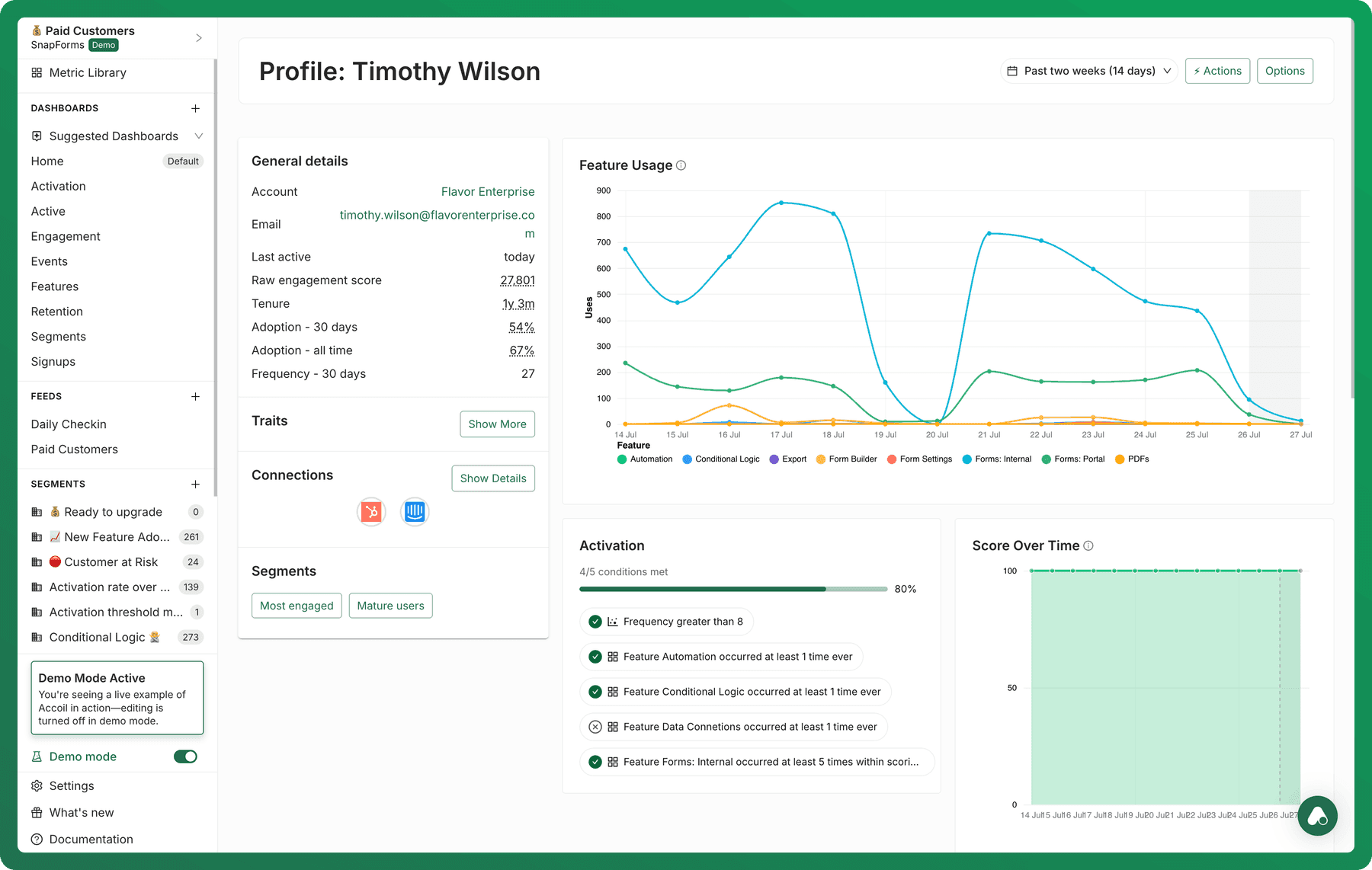
Arrange and save the layout
Drag items to change their order. Make an item full width when a chart or table needs more room, then save the layout.
Use Options to switch between the default layout and your custom layout.
Custom layouts are personal by default. Contact Accoil Support if your team needs a shared account layout.