
Setting up Accoil Slack alerts
Create an automation that posts alerts to Slack, then choose its trigger, channel, filters, delivery frequency, and preview fields.
Summary
Learn how to set up Accoil alerts for key user and account activities with customizable options.
How this helps
Keeps teams informed of important engagement changes, ensuring timely and relevant actions.
Why use Accoil alerts?
Accoil alerts make it easy to keep your team updated on key activities within your product. You can choose from pre-defined alerts or create custom ones tailored to your needs.
How to create an alert
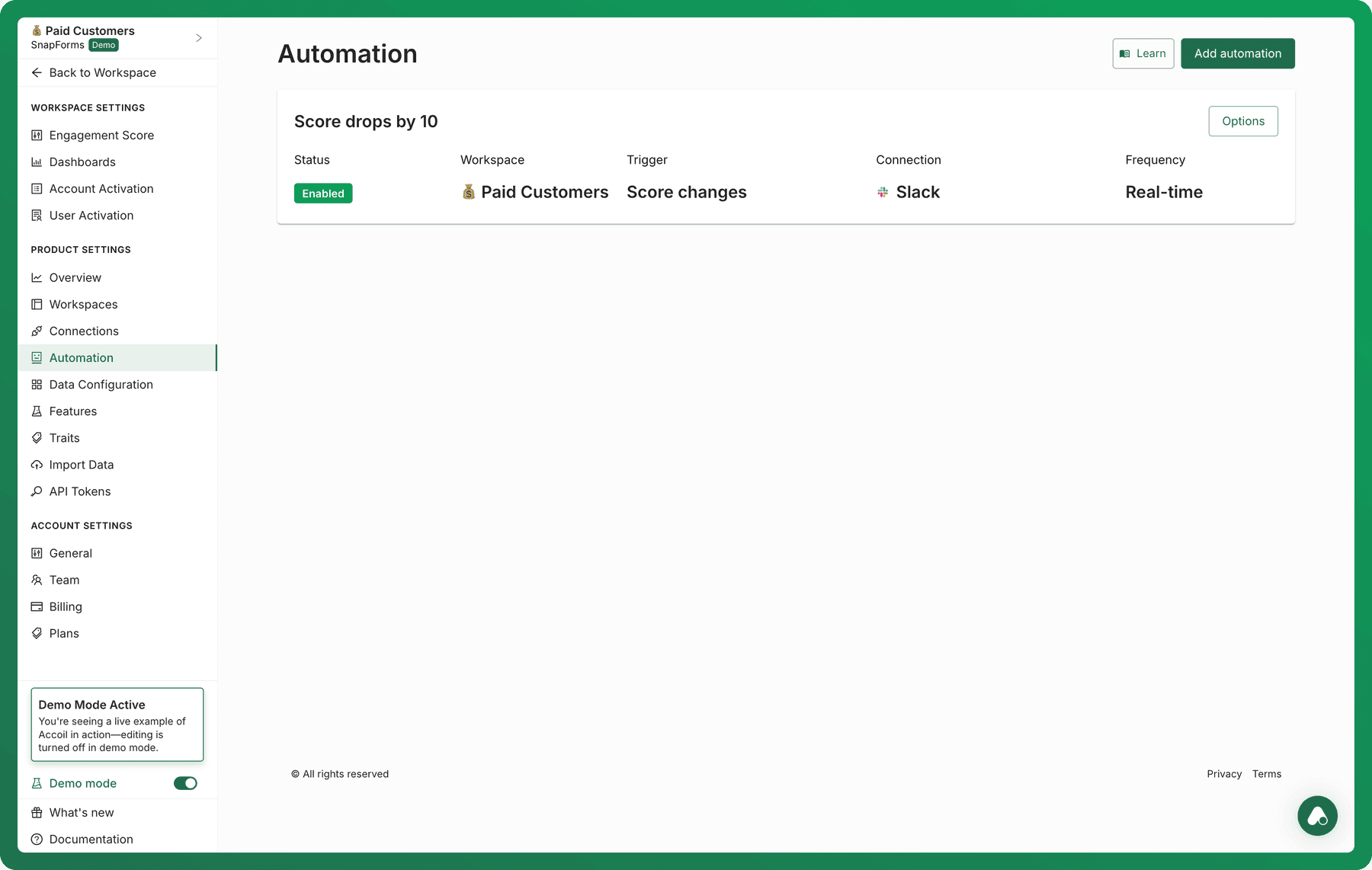
- Create a new Automation via "Workspace Settings". From the left-hand navigation, click "Automation" under Product Settings
- Add Automation
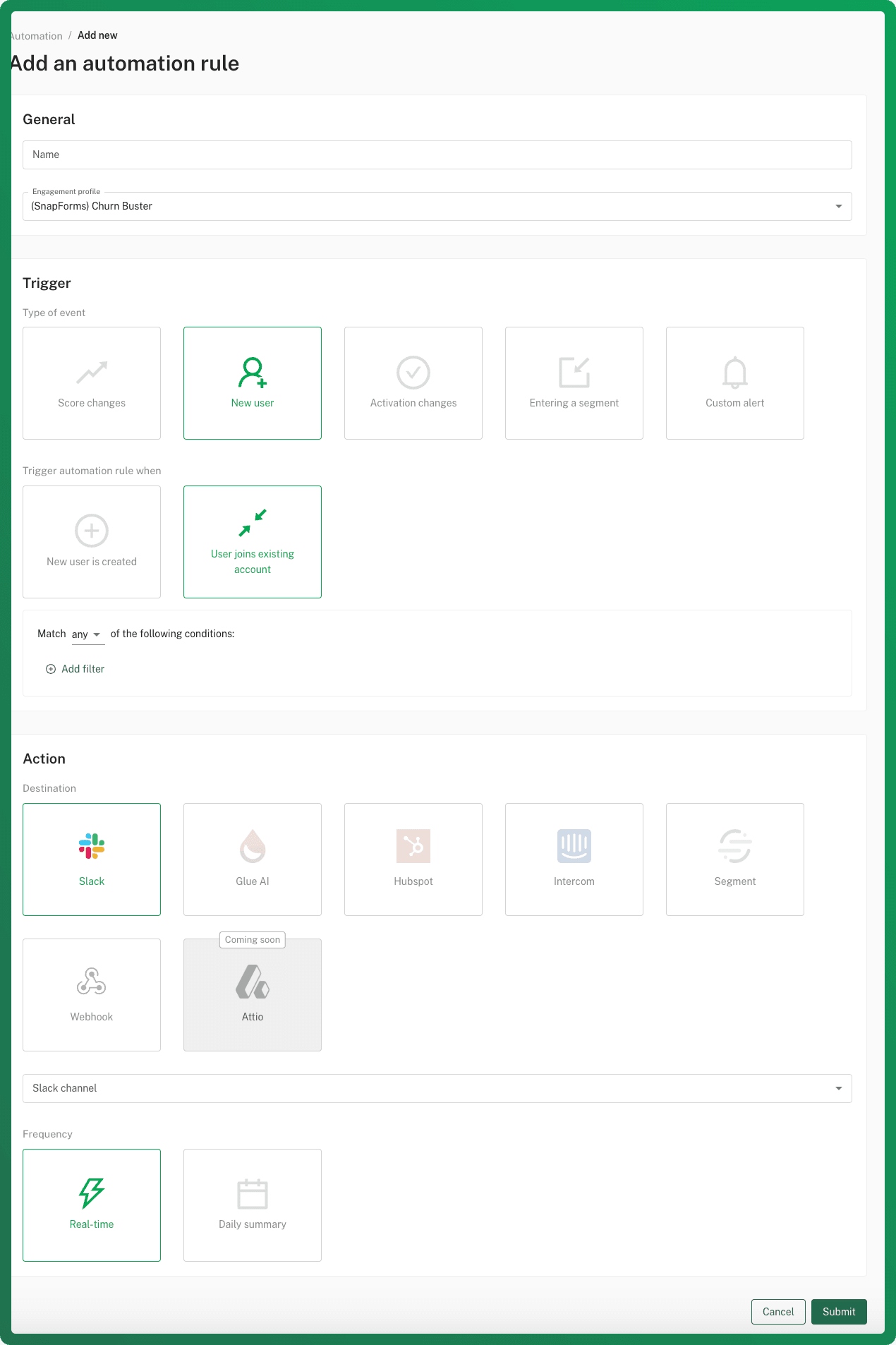
- Name your alert and select the workspace.
- Configure the four main elements:
- Trigger type – Defines what activates the alert.
- Channel – Where the alert is sent.
- Automation – What the alert does.
- Frequency – How often the alert is sent.
Alert Triggers
There are currently 5 types of triggers you can use for your Alerts:
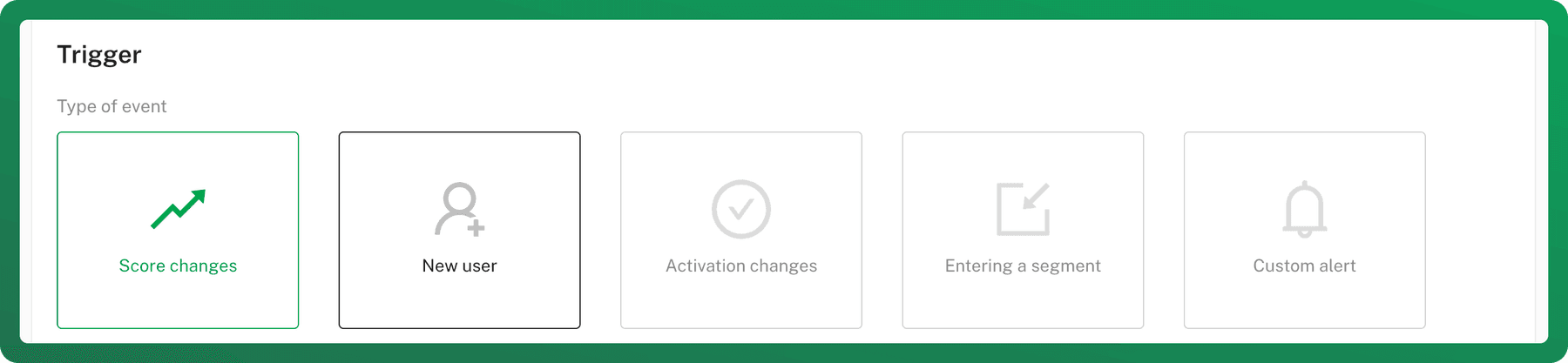
- Score changes – Get alerts when a user or account’s score changes. Useful for tracking risks or growth opportunities.
- New users – Be notified when a new user joins or an account is created.
- Activation changes – Get alerts when a user/account surpasses a certain activation level. Ideal for tracking trial conversions.
- Entering a segment – Receive alerts when users/accounts enter specific segments (default or custom).
- Custom alert – Define custom conditions for unique alerts.
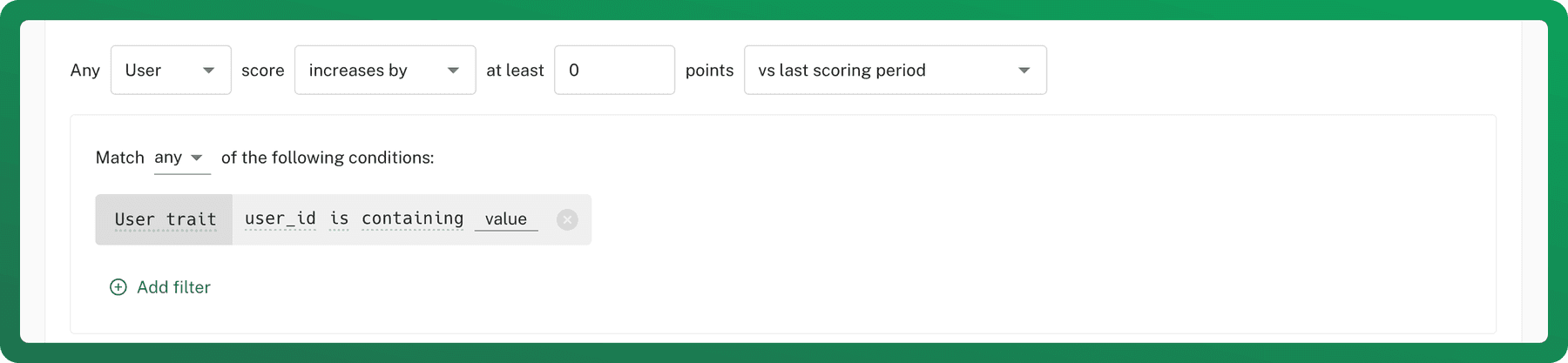
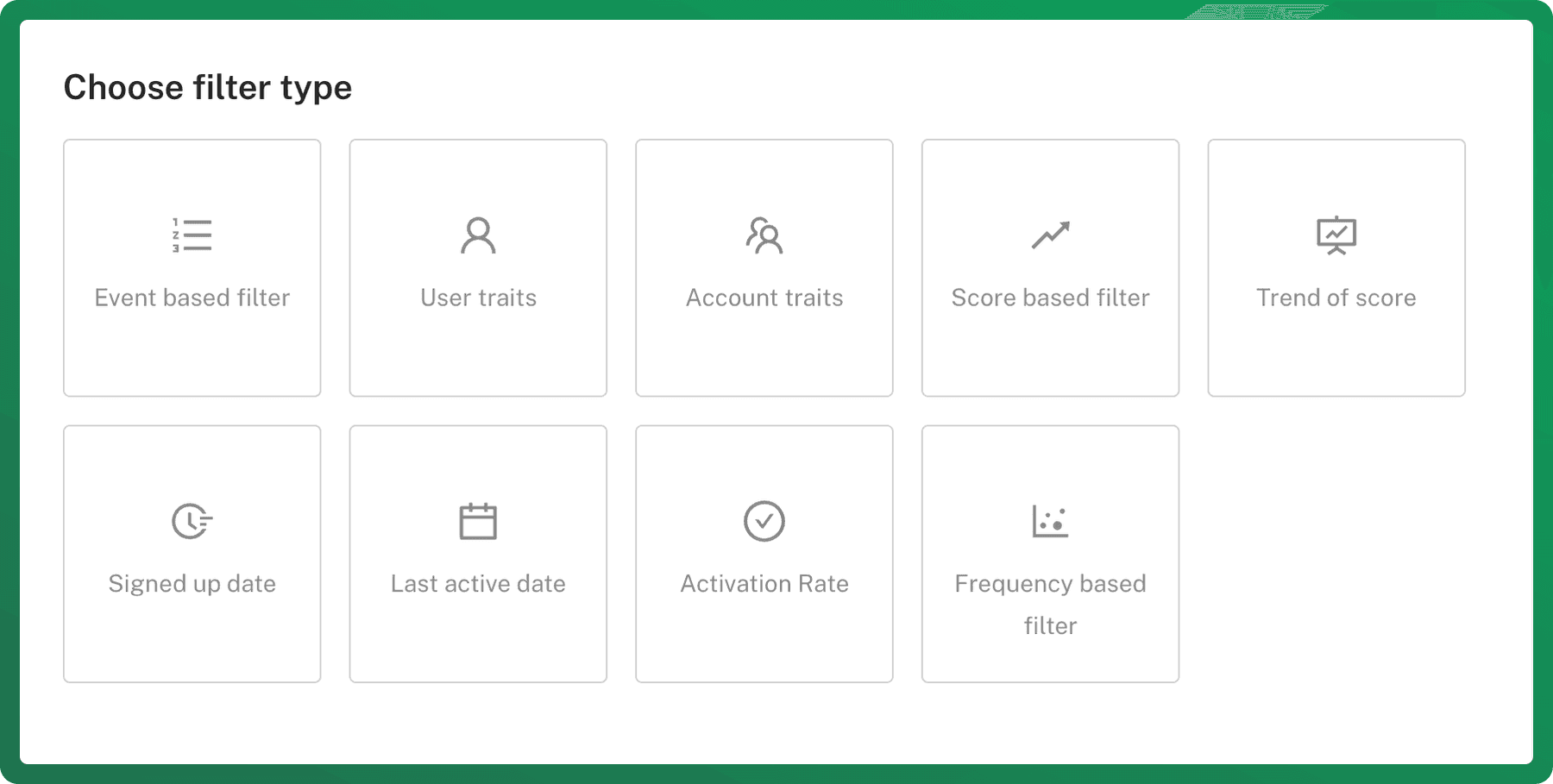
Alert Filters
Customize notifications by selecting specific users/accounts, score ranges, and time-based changes.
Alert Channels
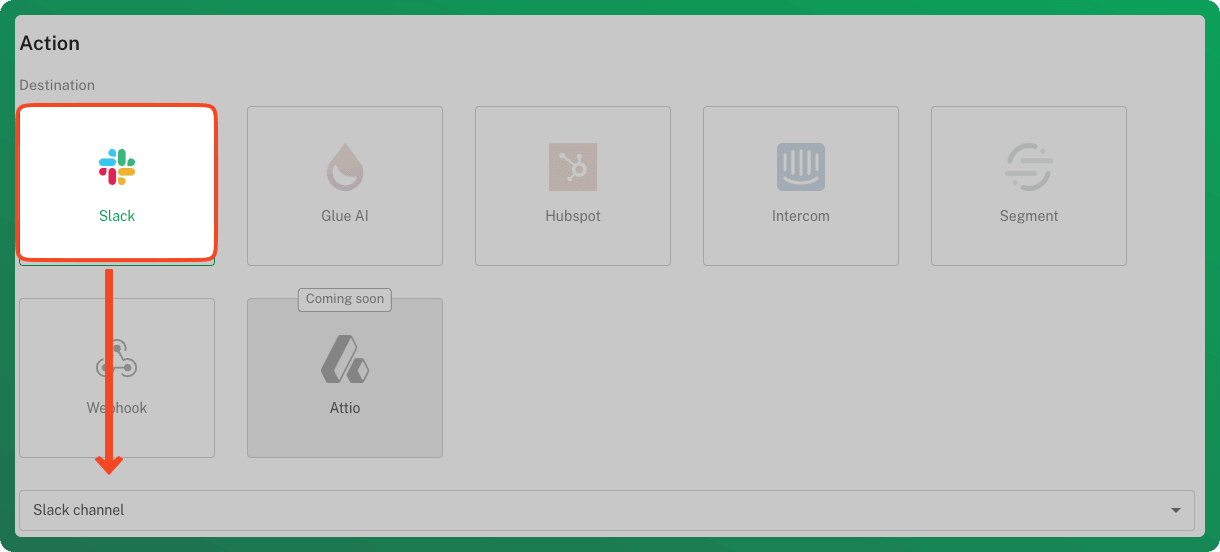
Select "Slack" and nominate the specific Slack channel to which you want Alerts delivered.
Alert Frequency
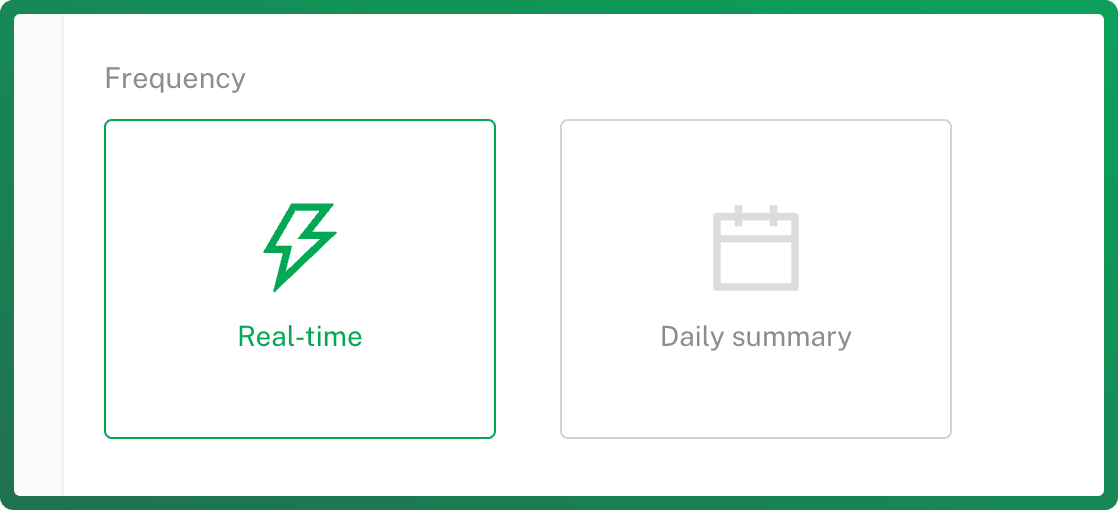
Choose how often alerts are delivered:
- Real-time – Alerts trigger immediately when conditions are met.
- Daily summary – Alerts are delivered at eg. 9 AM daily.
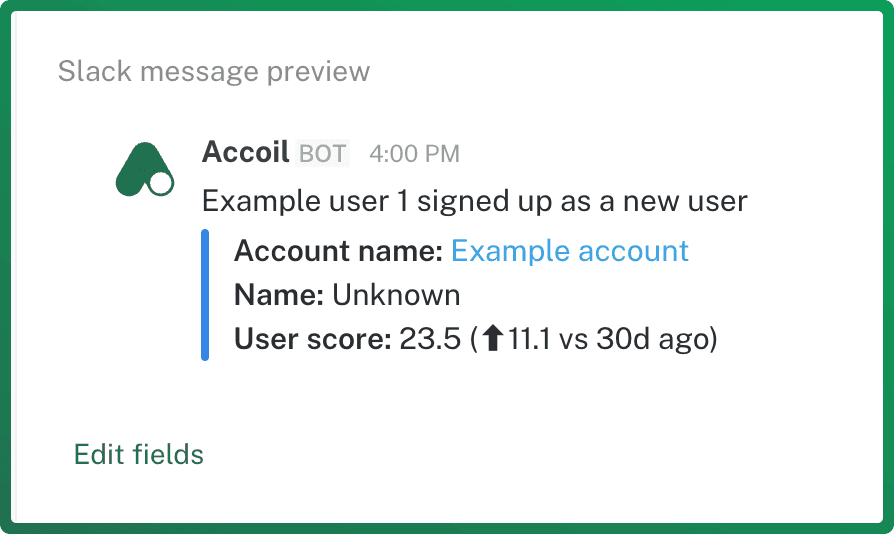
Custom Preview Fields
Customize which fields appear in your Slack alerts for better visibility.
Set up alerts today and keep your team ahead of engagement trends!
Triggers for Automations
Choose between the five automation triggers - score changes, new users, activation changes, segment entry, and custom - and refine them with filters.
Setting up a Webhook automations
Send trigger data from Accoil to any webhook URL, choose the traits included in the payload, test the request, and set the automation live.